| Search |

Website Image Bank
Just like Web pages, to be seen on the Web, images need to be moved from your hard drive to the Web server. Then you can embed these images directly into your webpages.
Click on the IMAGE BANK tab in the Control Panel to open the Website Image Bank window .
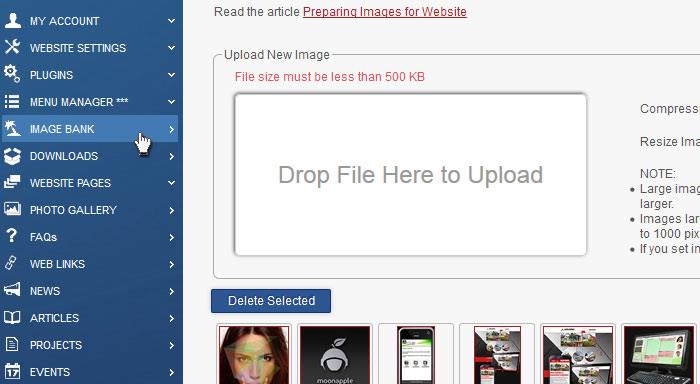
To upload an image:
- Specify the required sizes of the image in pixels. Other size parameter will be modified accordingly.
- Drug and drop the image file into the drop box Drop File Here to Upload.
To avoid problems with uploading your images please note:
1. File size of each image must be below 500 KB
2. Accepted file format: *.jpg (JPEG )
NOTE:
Use Image Bank to collect images which you are going to use in the general content.
Do not upload images to the following pre-designed sections:
- Image Gallery
- News
- Events
- Projects
- On-line Store
These sections are provided with their own special Image Management Tools, that automatically resize uploaded images.
Don’t put too many pictures on a page.
The more photos or graphics you have on a page, the longer the page will take to download. If you are in business, you’ve invested in a high-speed Internet connection. Many potential customers still have to dial up. Also, if you keep working with your own page, it will become cached in your machine’s memory so after a while you will have no true sense as to how long your own page takes to download. Don’t get lulled into complacency. If a page takes too long to display a potential viewer will go elsewhere.
CONTENT (step-by-step)
ACCOUNT SETTINGS
WEBSITE SETTINGS
Google Analytics and other Scripts
NAVIGATION
CONTENT
IMAGES
MEDIA
PLUGINS
Expandable / Collapsible Block
VIDEOS