| Search |

Slideshow
Photo slideshows plugin can be inserted into any page of your website.
Preparing a Slideshow
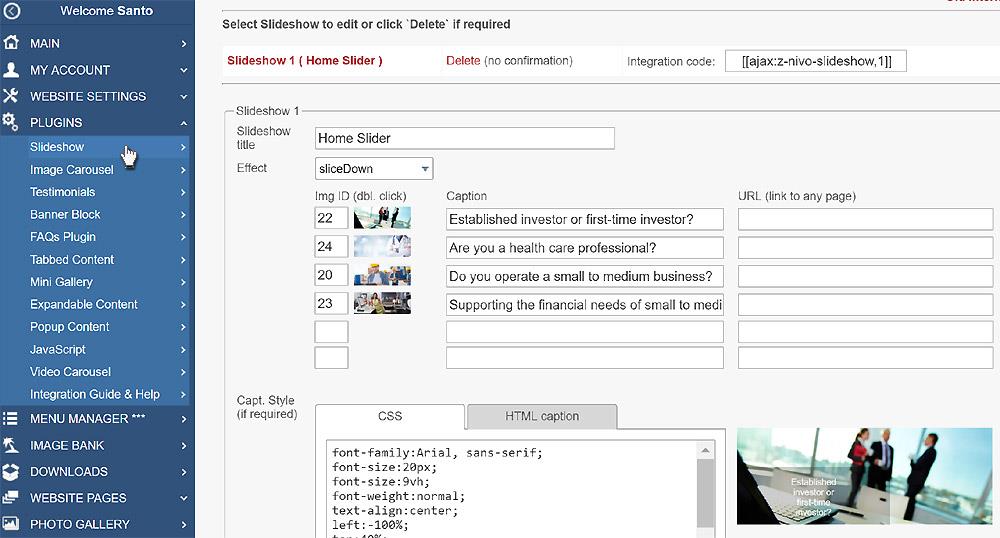
1. Upload Slideshow images to the Image Bank (all images must be of the same width and height ).
2. Select Slideshow Effect.3. Type Image Bank IDs of images or select them from the image bank (one number per line).
4. Type a Caption for each image if required.
5. Type a corresponding URL if required.
6. Type CSS style for captions, or leave it blank for Default style.
Integrating a Slideshow into web page
To integrate a slideshow plugin, copy and paste this code into your web page in the place where you want it to appear:
[ [ajax:z-nivo-slideshow,1;0.5] ]
where:
- 1 - slideshow ID (type a required number instead)
- 0.5 - black filter opacity (optional)
Another way is using the Insert Plugin tools in the toolbar.
1. Place the cursor at the required slideshow position on a page.
2. Click Insert Plugin icon on the Toolbar.
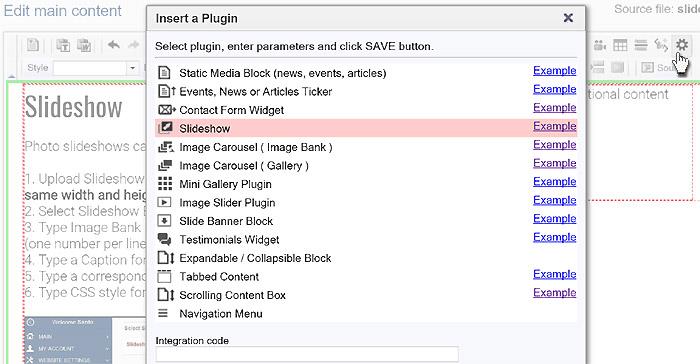
3. Click Slideshow on the plugins page.
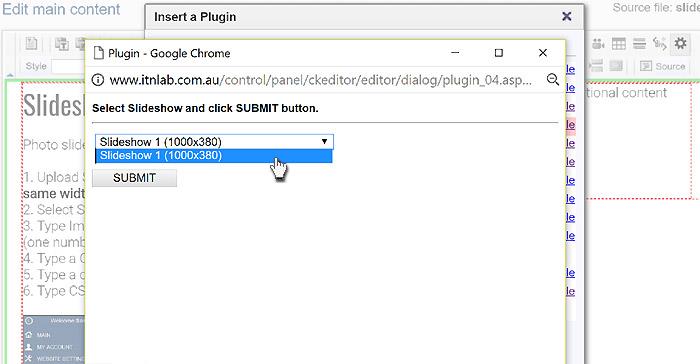
4. Select a required slideshow in the drop-down box and click SUBMIT button then SAVE in the parent window.
All Plugins
AJAX Plugins and DemosSlideshow
Gallery Widget
Mini Gallery
Mini Gallery 2
Image Slider Plugin
Banner Block
Expandable / Collapsible Block
Tabbed Content
Accordion
News Ticker
Image Carousel
Image Carousel - River Style
Video Carousel
Latest News Widget
Testimonial Slider
Latest Project Widget
Line and Pie Charts Plugin
Web Poll Widget
Example