| Search |

Managing Website Menu
Adding a new Menu Item linking to a page
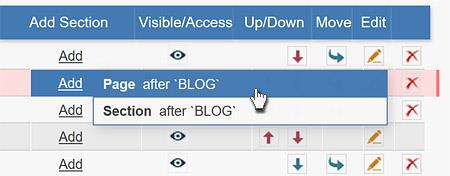
To create a new Menu Item linking to a page, navigate your cursor to Add Page ... tab.
A new window called Select Page Type will appear on the screen.
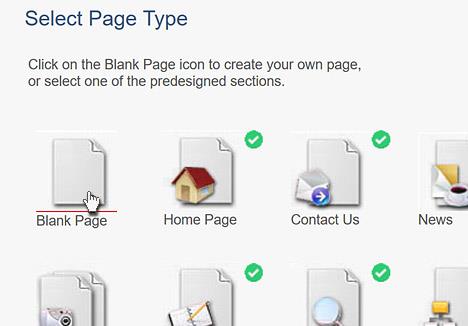
Click on the Blank Page icon to create your own page, or select one of the predesigned templates.
Now you see the next window.
Type the name of a new section/page (Section Name ) and a corresponding Page Title.
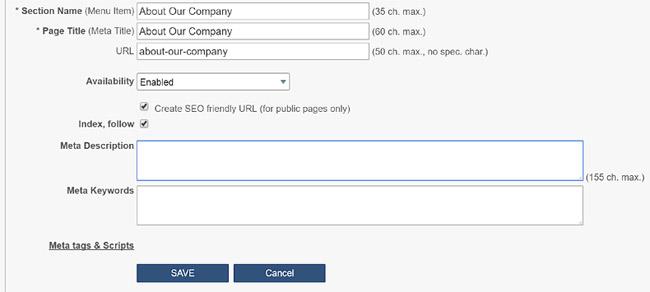
When you create a new Menu Item, a corresponding webpage will be created automatically.
If we have set up user management tools on your site, you can select a user access level for the new page. You have three choices: All Visitors, Registered Users or Staff Only Page.
Now define the page Availability (Enabled or Disabled for website visitors).
At the last stage, you can type specific Meta Description and Keywords for this page. If you leave these fields blank, the page will include keywords specified for the whole website (General Meta Tags).
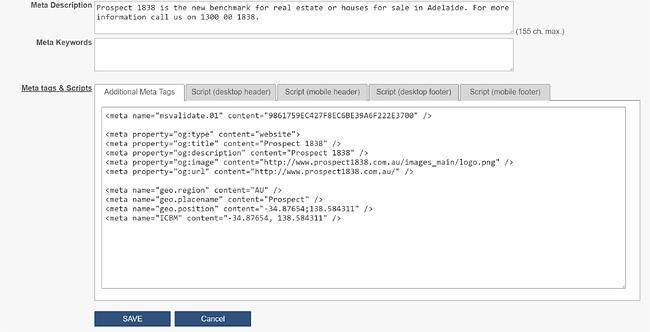
You may also add specific meta tags and javascript for this page. To do this open the Meta tag editor clicking on the link Meta tags & Scripts.
Section
Navigate to Add Section ... tab of the Menu Manager,
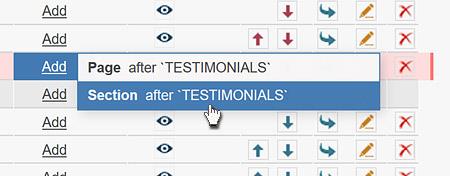
then type the name of a new section in the second window.
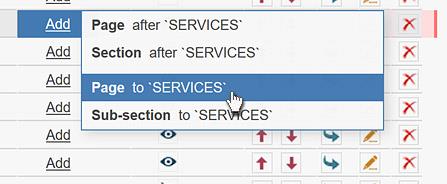
Once you have created a new section, now you may add an unlimited number of pages to it. To add a page to the section, navigate to Add Page to... tab which is related to its parent section.
Organise your sections and sub-sections
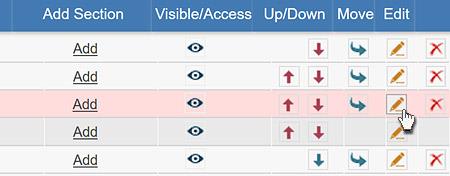
The Move Up and Move Down icons let you shift sections and subsections vertically so as to arrange them by order of priority.
Rename Section and corresponding Page Title
Click on the Change Properties icon (yellow pencil) to be able to edit section name and page properties.
CONTENT (step-by-step)
ACCOUNT SETTINGS
WEBSITE SETTINGS
Google Analytics and other Scripts
NAVIGATION
CONTENT
IMAGES
MEDIA
PLUGINS
Expandable / Collapsible Block
VIDEOS