| Search |

Online HTML Editor
To start editing a webpage, click on a Page Title in the Menu Manager.
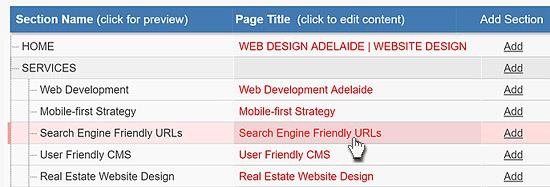
A new window Edit Page Content will appear. Select a Page Area you want to edit. By default, a selected page area is the Main Content.
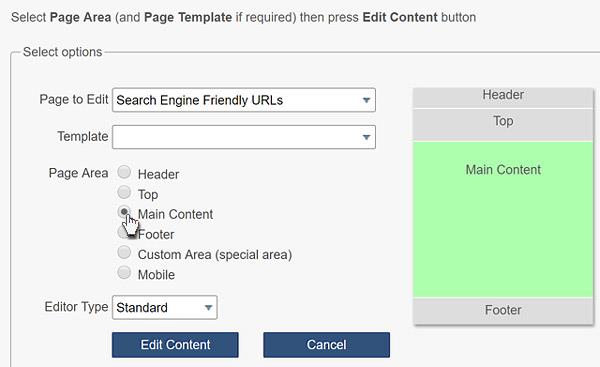
You can use any previously created page as a template for the new one. To do this, just select a Template from the drop-down list.
Now choose an Editor (Standard, Advanced or Basic) and press Edit Content button.
A new window Edit Content will appear.
zStudio CMS contains inbuilt HTML Editor. This Editor allows you to easily create content using a browser-based interface.
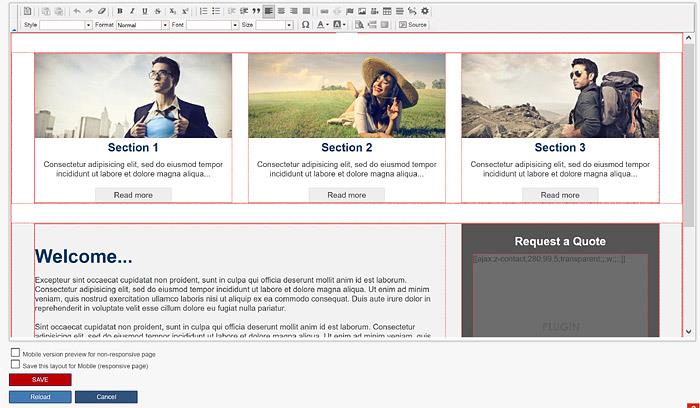
The Editor has a Word-like interface and includes standard features such as tables , font properties, etc. Images may be simply imported into the Editor from your Image Bank and positioned through simple actions. Hyperlinks may be created and removed as required, to both internal pages and external sites.
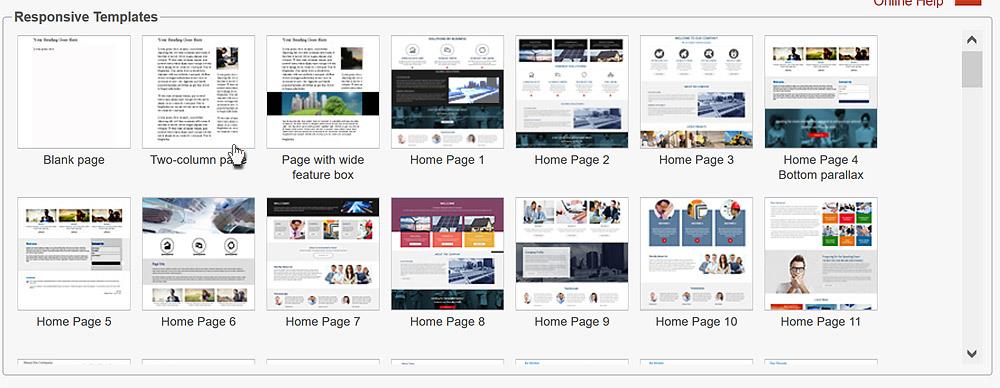
Below the Editor, you can see several predesigned templates. To select one of them, just click on the desired thumbnail and a selected template will be loaded into the Editor.
When your editing is finished, click the SAVE button to save a new content. Now you can go to the website and see the result of your job.
CONTENT (step-by-step)
ACCOUNT SETTINGS
WEBSITE SETTINGS
Google Analytics and other Scripts
NAVIGATION
CONTENT
IMAGES
MEDIA
PLUGINS
Expandable / Collapsible Block
VIDEOS